Connect Claude Code
Claude Code can edit your Astro projects from a terminal. You type a request in Claude Code, and the change appears in the Astro editor.
There are two ways to connect. Both need the same two things first.
Before you start
- Open Astro. The Astro app has to be running on this computer.
- Create a token. A token is a password that lets one agent work in Astro as you.
Create a token
- In Astro, open Settings, then Connect agents.
- Type a name so you remember what it is for, such as Claude Code on my laptop.
- Press Create token.
- Press Copy. The token starts with
astro_.
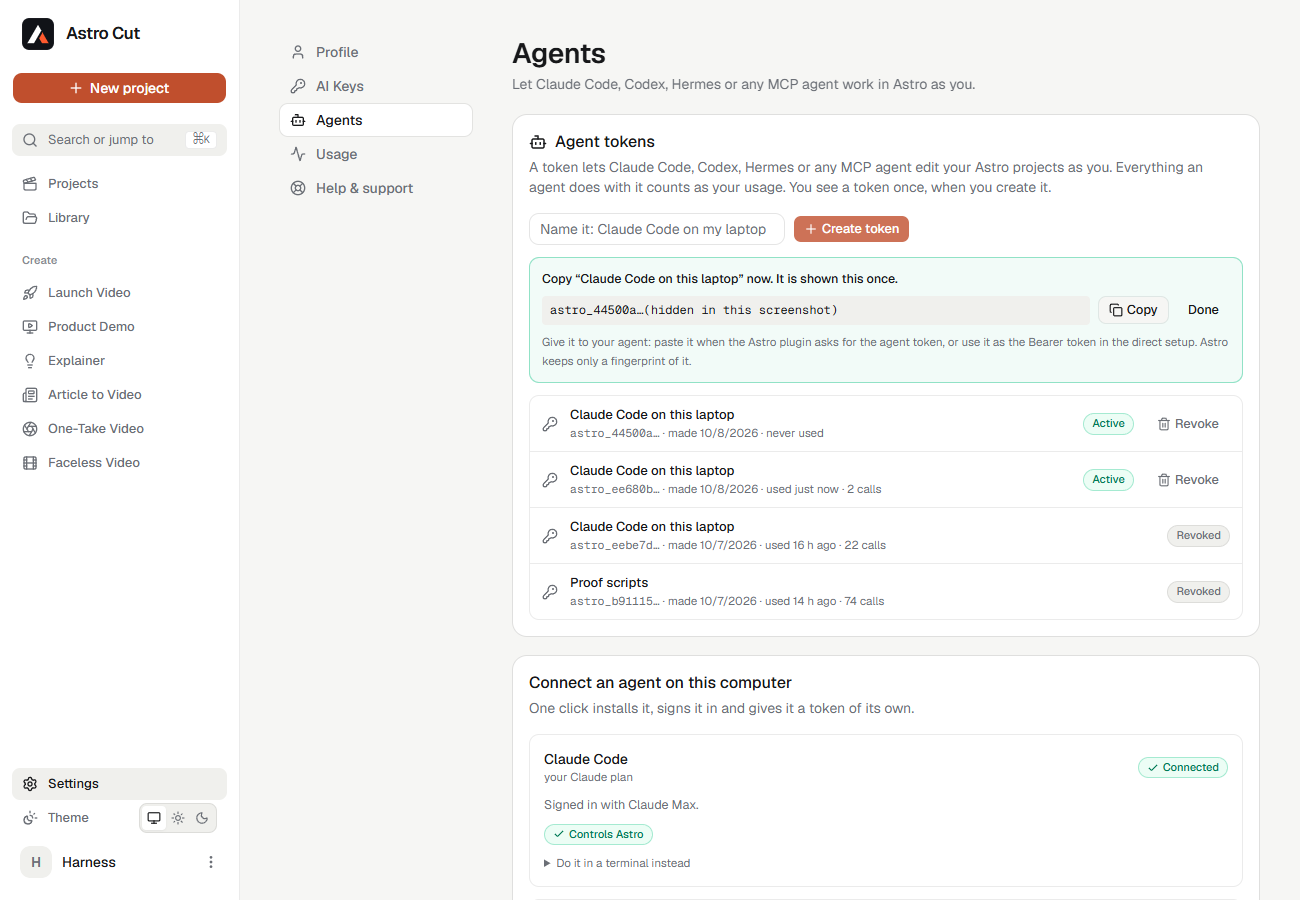
Astro shows a token once. If you lose it, create another.
Route 1: the plugin
Use this when your Claude Code has the /plugin command.
Step 1. Add the Astro marketplace
In a terminal:
claude plugin marketplace add AstroCut/Astrocut
Step 2. Install the plugin
claude plugin install astro-cut@astro-cut
Step 3. Give it your token
Pick one of these. All three do the same job.
In Claude Code. Run /plugin configure astro-cut@astro-cut, paste the token, and restart Claude Code.
With an environment variable. Set ASTRO_AGENT_TOKEN before you start Claude Code.
On Windows (PowerShell):
$env:ASTRO_AGENT_TOKEN = "astro_YOUR_TOKEN"
claude
On macOS or Linux:
export ASTRO_AGENT_TOKEN="astro_YOUR_TOKEN"
claude
With a file. Put the token on the first line of a file named agent-token in a folder named .astro in your home folder.
Step 4. Check it
In Claude Code, run /mcp. You should see astro marked as connected.
Route 2: the direct command
Use this when /plugin is not available, or you prefer one command.
claude mcp add --transport http astro http://127.0.0.1:41417/api/cut/mcp --header "Authorization: Bearer astro_YOUR_TOKEN"
Replace astro_YOUR_TOKEN with your token. Keep the word Bearer and the space after it.
Then run /mcp in Claude Code. astro shows as connected.
One click from Astro
Astro can do the direct route for you. Open Settings, then Connect agents, choose the Claude tab and Claude Code, and press Connect automatically. If the card says to install Claude Code or sign in first, it has a button for that and Check again. Astro creates a token named for Claude Code and this computer, adds itself to Claude Code's settings, and shows Connected once Claude Code reaches it. If that fails, the card shows the command to run instead, with a Copy button. On the Astro website, the same tab gives the command for Windows or Mac with Get the command.
Try it
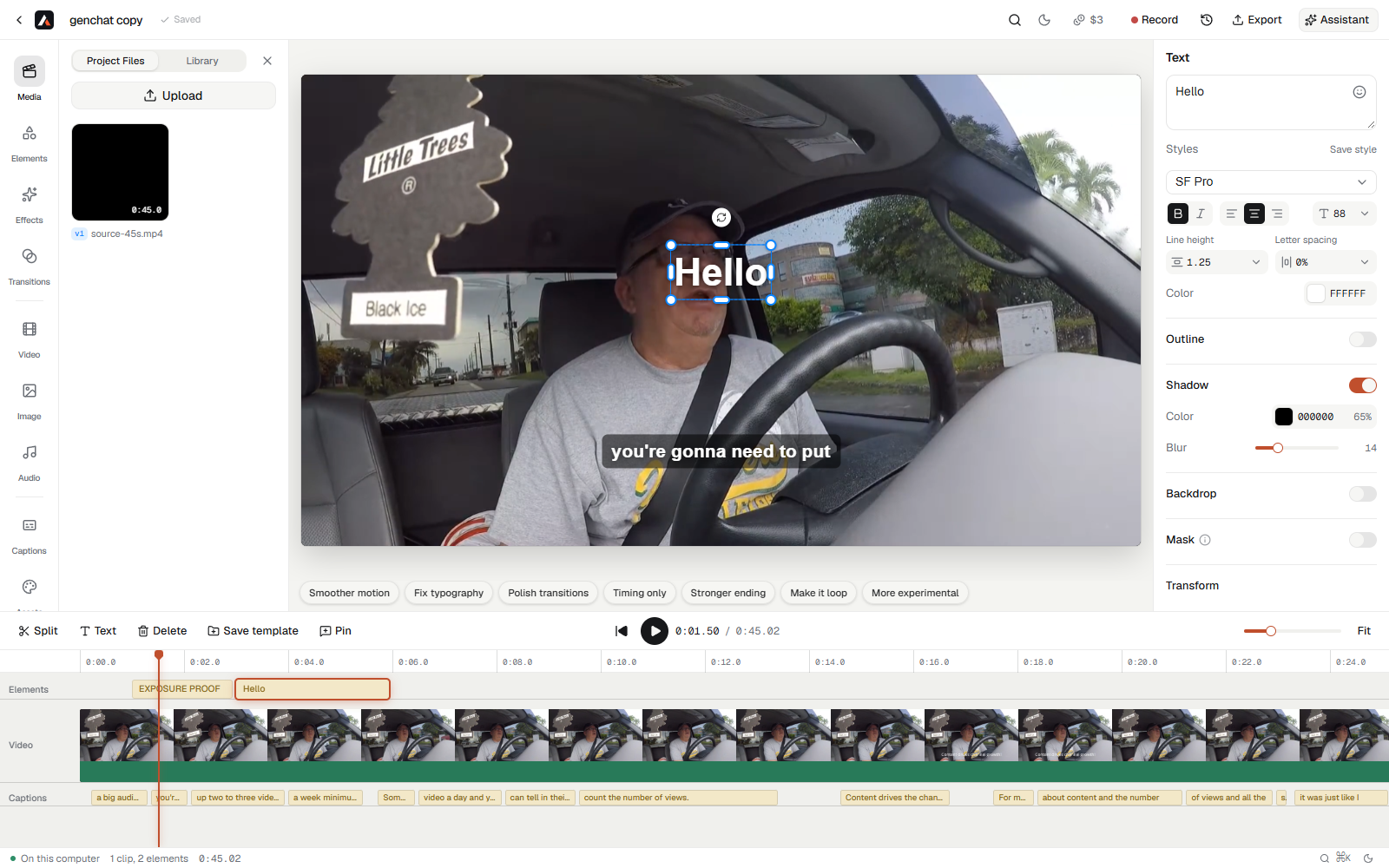
Open a project in Astro. In Claude Code, ask for an edit:
Add a title that says "Hello" at the start of my Astro project.
The title appears in the editor.
Turning a token off
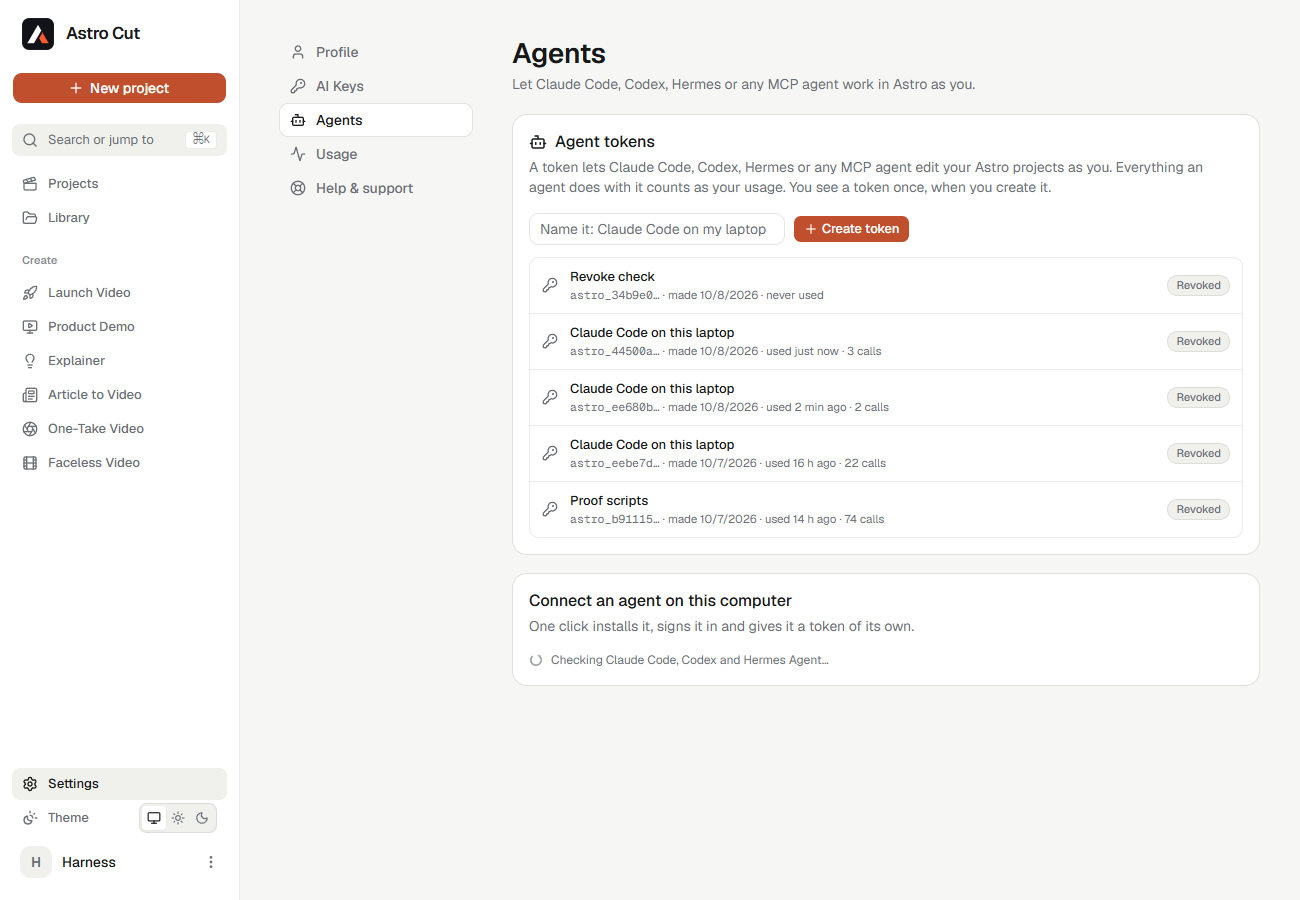
Open Settings, then Connect agents, and press Revoke next to the token. The next request made with it is refused.
If it does not work
| What you see | What to do |
|---|---|
ECONNREFUSED or "Astro isn't running on this computer" | Open the Astro app and try again. |
| "/plugin isn't available" | Use the direct command in Route 2. |
| "Token not recognised" | Create a new token in Settings, Connect agents, and use that one. |
| "This token was revoked" | Create a new token. |
| "Astro Cut has no agent token yet" | The plugin has no token. Do Step 3 again. |
More help is on the Troubleshooting page.